Why Even Government Websites Fail SSL Checks (And How We Detect It)
Patrik Duch
Security & Infrastructure

Why Even Government Websites Fail SSL Checks (And How We Detect It)
SSL certificates are supposed to be the foundation of web security. Yet even large institutions — including government websites — sometimes get them wrong. Here's what's happening and why it matters for your product.
The Real-World Problem
While building product tours in Illumate UI, we noticed something interesting: some government websites trigger SSL warnings despite having valid certificates installed.
Take this example from a Czech government ministry website. When loaded in Illumate UI, our automatic SSL check flagged it as Unsafe:
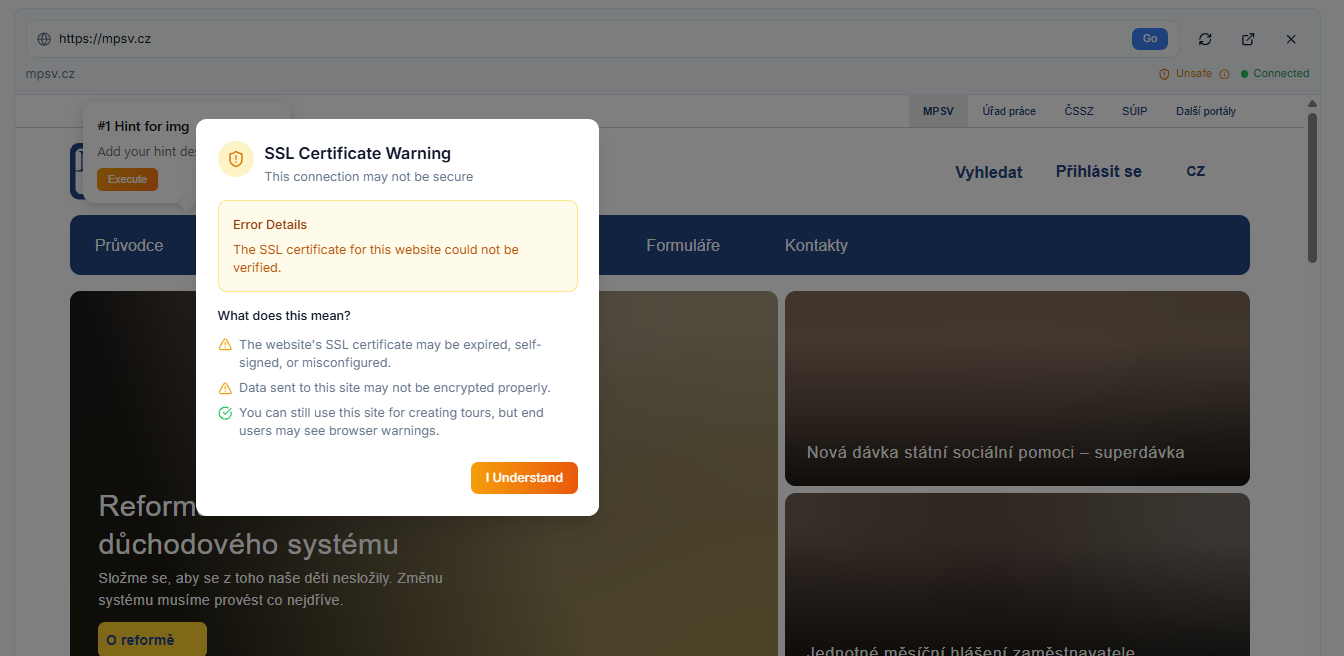
The certificate itself is valid. So what's the problem?
Understanding Certificate Chains
When your browser connects to a website, it doesn't just check the site's certificate. It verifies a chain of trust:
1. Root Certificate — Pre-installed in your browser, issued by trusted authorities
2. Intermediate Certificate(s) — Links the root to your site's certificate
3. Your Site's Certificate — The one you actually installed
Here's where things go wrong: If the intermediate certificate is missing, many browsers will fail to verify the chain — even though the root and site certificates are perfectly valid.
Why Does This Happen?
How Illumate UI Detects This
Every time you load a website in Illumate UI, our system performs an automatic SSL verification:
Clicking on the Unsafe badge opens a detailed modal explaining:
Why This Matters for Your Product
If you're building onboarding tours for a website with SSL issues, your end users will see browser warnings. That's not a great first impression!
The Hidden Use Case
Here's something we didn't originally plan for: teams are using Illumate UI to verify their SSL configuration.
The workflow is simple:
1. Deploy your new website or feature
2. Load it in Illumate UI
3. Check the SSL badge instantly
4. Fix issues before real users encounter them
No need for complex SSL testing tools. No command-line wizardry. Just load your URL and see the result.
What To Do If You See "Unsafe"
If your own site shows the Unsafe badge:
1. Check your certificate chain — Use tools like SSL Labs for detailed analysis
2. Install intermediate certificates — Your CA provides these; make sure they're in your server config
3. Test in incognito mode — Cached intermediates won't mask the problem
4. Verify after deployment — Check again in Illumate UI to confirm the fix
Building Trust, One Certificate at a Time
SSL might seem like a boring technical detail, but it's the foundation of user trust. When visitors see browser warnings, they leave. When they see the green padlock, they stay.
Illumate UI helps you ensure that your product tours run on a solid, secure foundation — and now you know it can also help you catch SSL issues before your users do.
---
Ready to check your site's SSL? Load it in Illumate UI and see the result instantly. It's one of those features that costs nothing extra but might save you from an embarrassing support ticket.


Ready to improve your user onboarding?
Start creating interactive product tours in minutes.